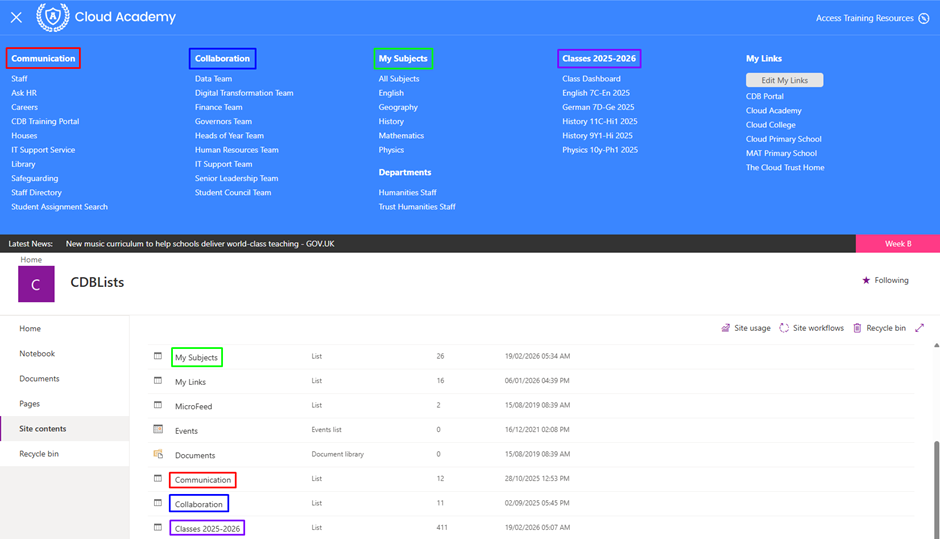
The Cloud Design Box Mega Menu has four columns, two of which are automated based on the Subjects and Class Teams in the tenancy. Our standard build also includes a Communication and Collaboration column which are manually managed.
Please note, column names and usage may differ in your tenancy if change requests have been made.
As the Subjects and Classes columns are both automated, this article provides an overview on how the Communication and Collaboration columns are managed. Mega Menu links can only be managed by an admin of the Home site.
Mega Menu column list location
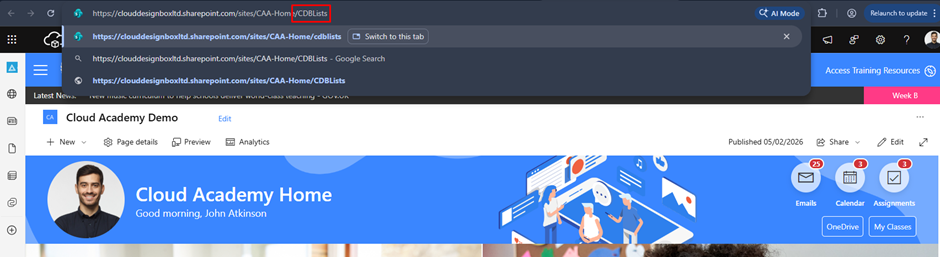
Step 1: Access the CDBLists subsite.
- Navigate to the Home site and add /CDBLists to the end of the URL, then hit enter.
Step 2: Access Site Contents
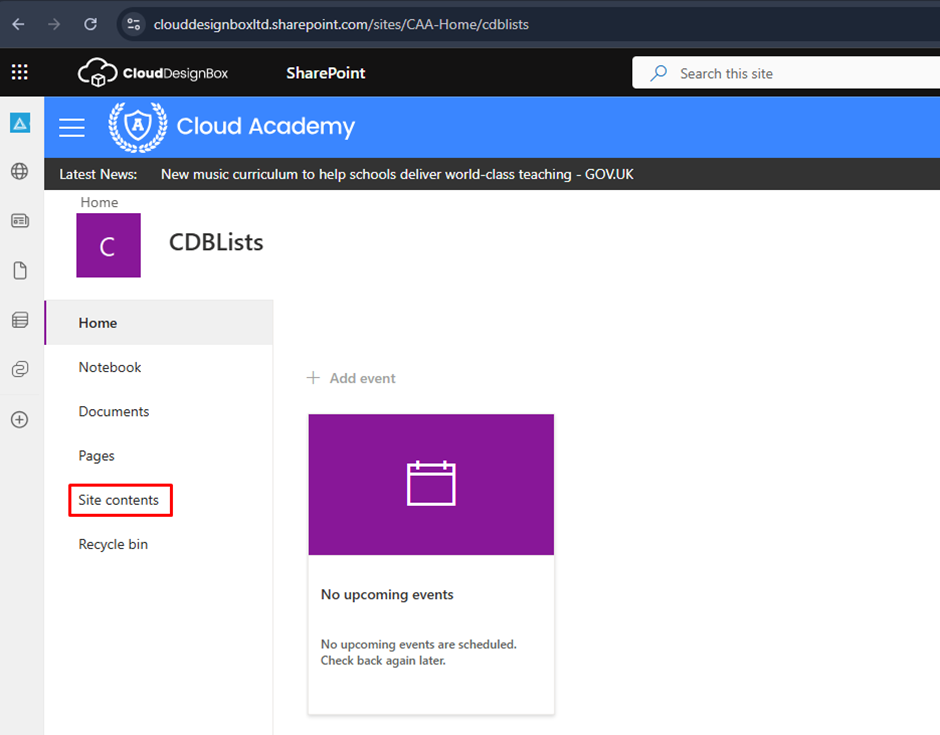
- In the CDBLists subsite, select Site contents.
Step 3: Identify list names
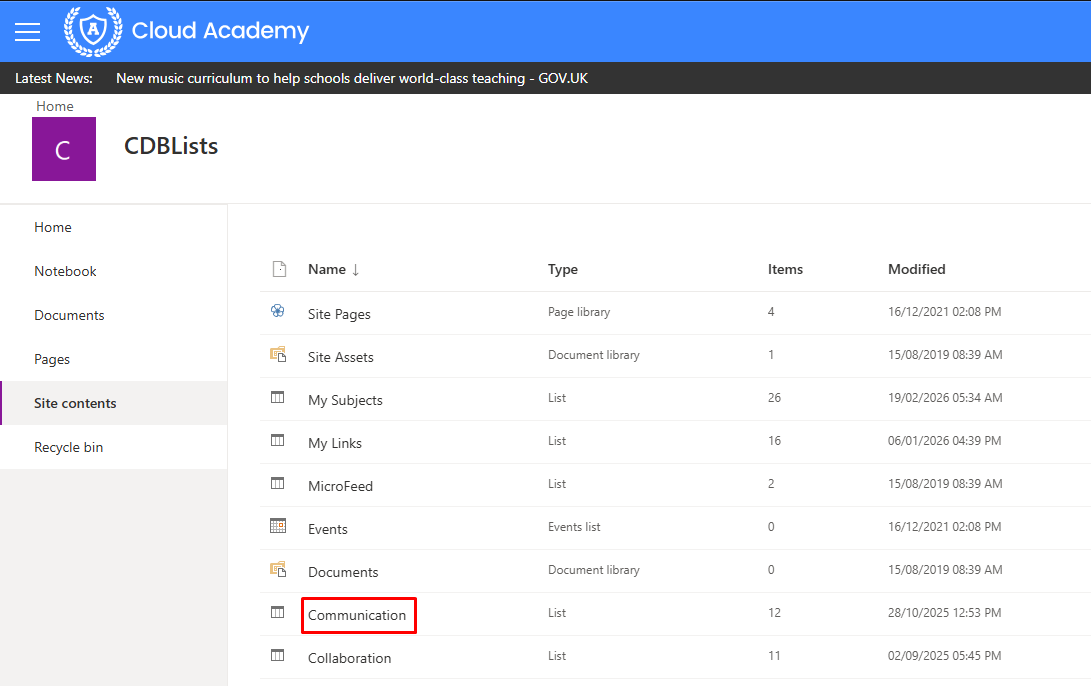
- You should find lists with names that correspond to each column in the Mega Menu.
Communication Sites Overview
Communication sites are managed via security groups in the tenancy. We do not recommend adding individual users to permissions, as this can be difficult to manage long term.
Groups can be added into Mega Menu link permissions, which provides users access to see the link in the Mega Menu. Please note, Mega Menu links do not provide access to the site themselves - only the ability to see the link. Site permissions are managed at a site level. We have a separate guide covering this process, which can be found here.
If the site had been created via our Site Creation tool, any groups added to the form will automatically get added into the Mega Menu link permissions for the site.
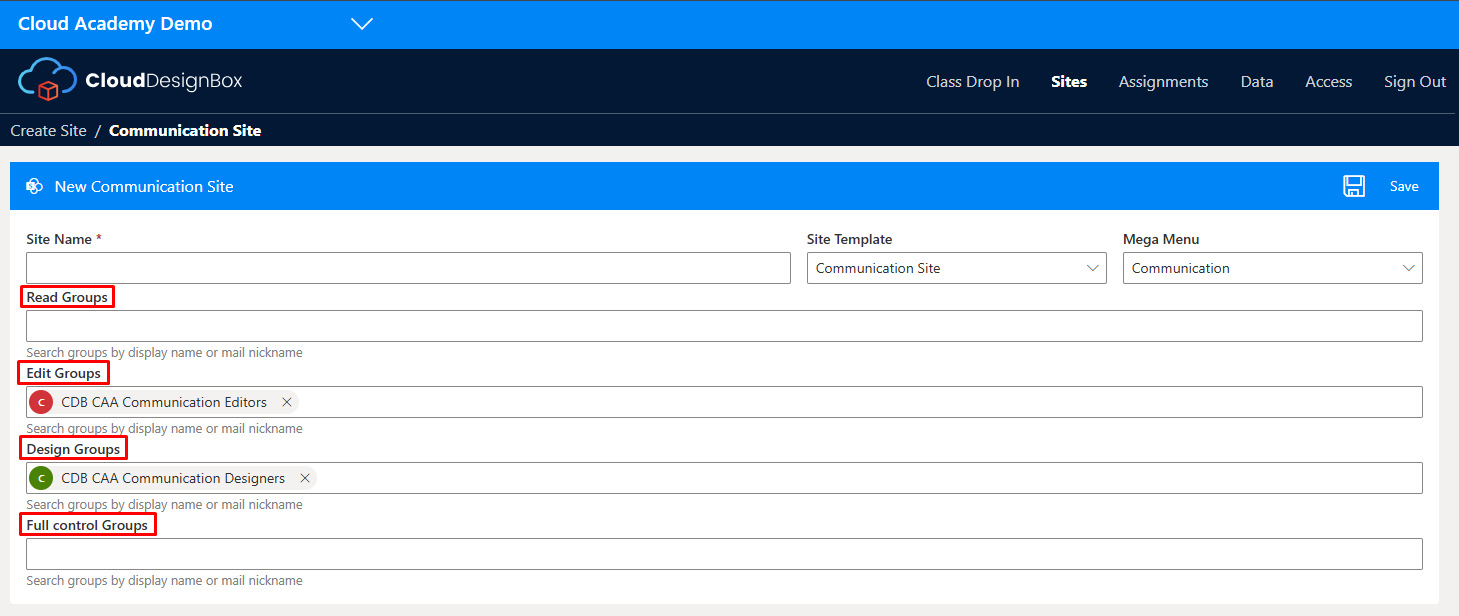
For additional access to the site after the site has been created, this must be added manually to both the site permissions and the Mega Menu link permissions. How to manage SharePoint communication site permissions.
Managing Communication Link Permissions
Step 1: Navigate to the CDBLists subsite.
- In Site Contents, select the relevant list.
Step 2 (optional): Adding additional links
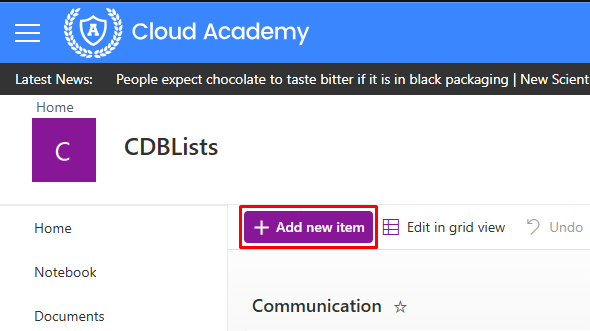
- If you are not adding a link manually, skip to Step 4. If you would like to add a link to an existing site to the Mega Menu under Communication, this can be done by clicking on the Add new item button.
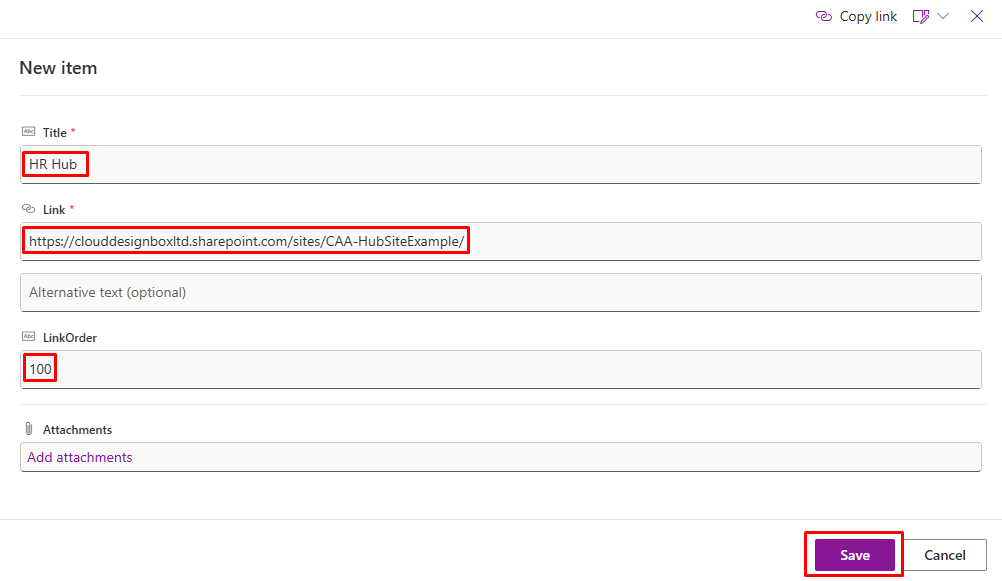
- In the form, enter a Title, set the LinkOrder to 100 (this keeps links in alphabetical order), paste in the URL to the Link field and click Save.
Step 3 (optional): Removing inherited permissions from manually added links
- If you have manually added a new link to the Communication column, the permissions will inherit from the top level Home site. These need to be amended to match the existing permissions on the manually added site, otherwise All Staff and All Students may have access to see the link. If you are editing a link that already has unique permissions, this step can be skipped.
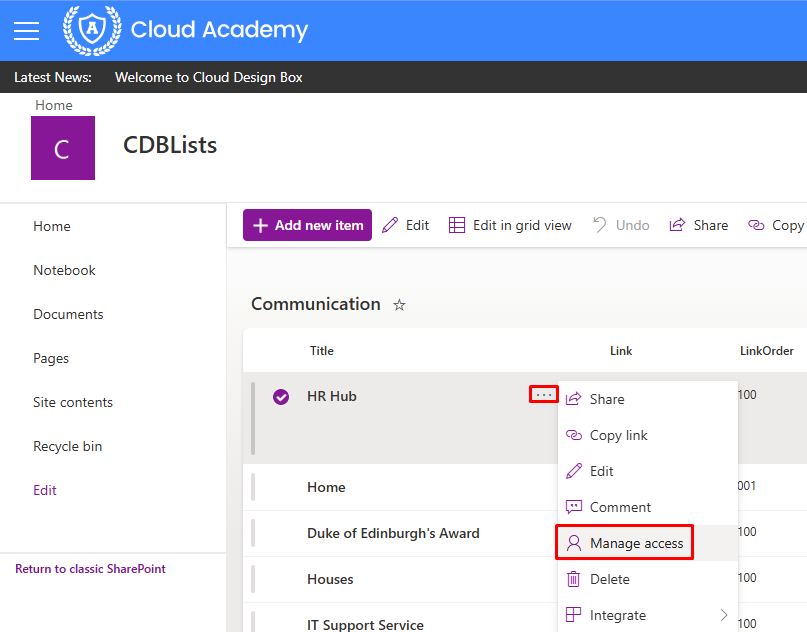
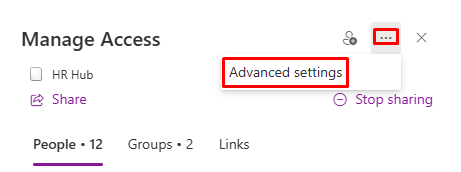
- Find the manually added link in the Communication list that had been created in the previous step. Click on the three dots and select Manage access.
- Click on the three dots and select Advanced settings.
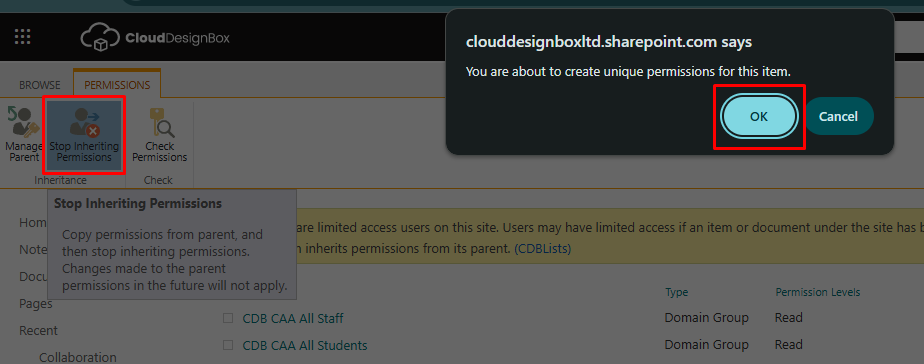
- Click on Stop Inheriting Permissions then OK to confirm.
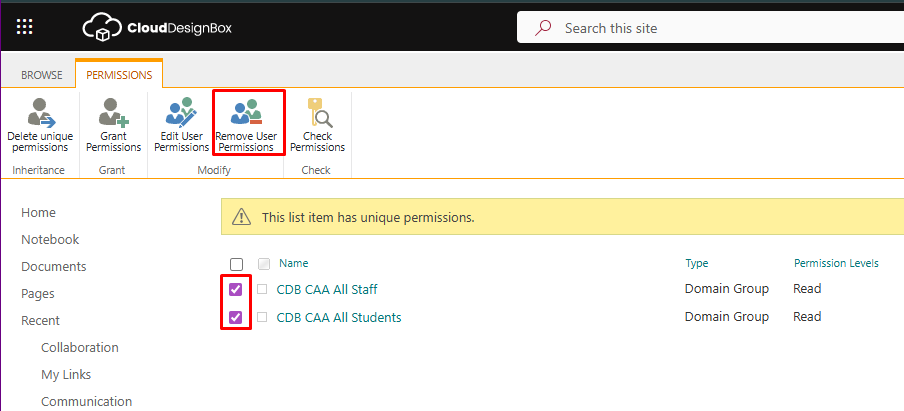
- Select the All Staff and All Students groups, and click on Remove User Permissions.
Step 4: Adding groups to link permissions
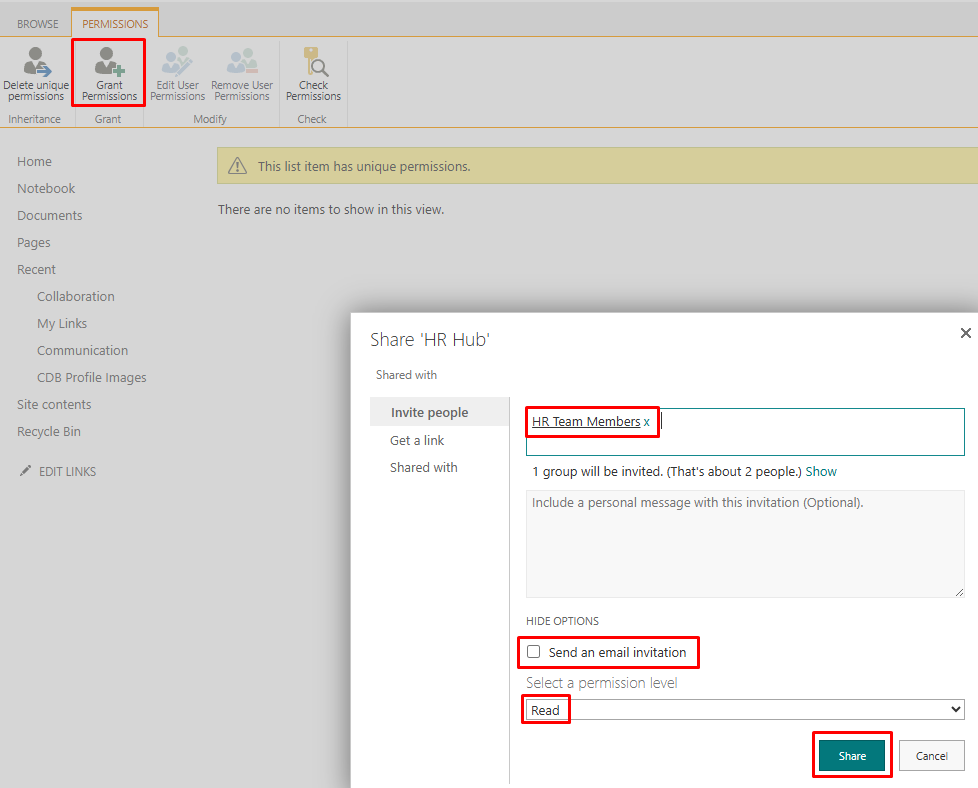
- Select Grant permissions and search for the relevant groups to add. Click on SHOW OPTIONS and uncheck Send an email invitation. Set the permission level to Read (these are permissions to view the link, anything above Read may allow users to edit the link. Site permissions levels are managed via individual site settings). Once you are happy with the settings, click Share.
Managing Collaboration Link Permissions
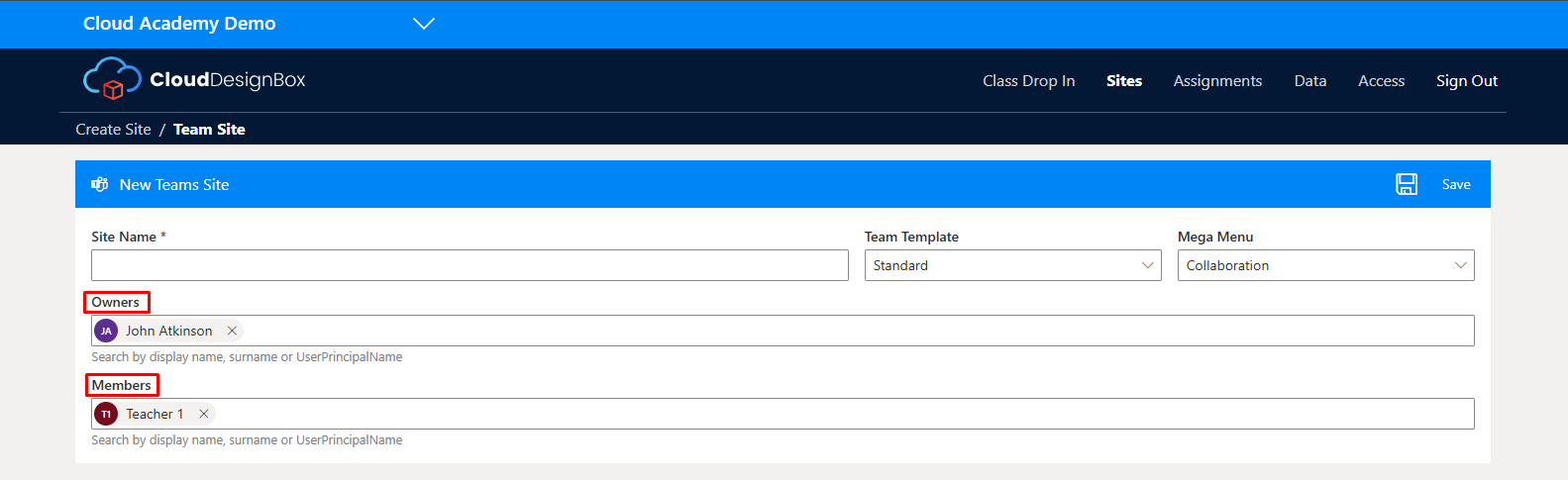
Collaboration/Teams sites are managed via the Team membership. Anyone that is added as a member or owner of the Team will get Edit access to the site by default. When a Collaboration Site is created via our Site Creation tool, any users added to the form will get added into the Team, and the Team group will get used for permissions to the Mega Menu link.
Step 1: Identify the correct Team
If a Team name has been changed, there are methods to Identify the correct Team.
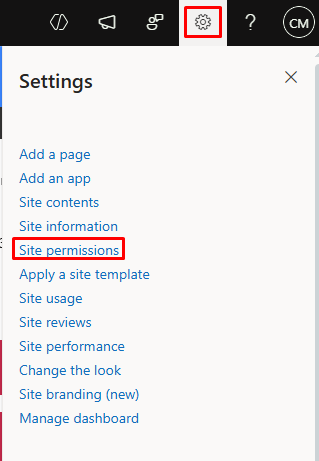
- Navigate to the Collaboration/Teams site, click on the Settings cog, then Site permissions.
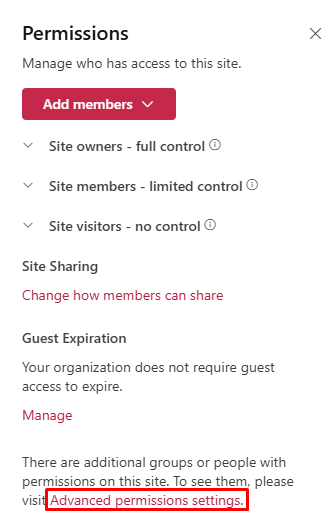
- Click Advanced permissions settings.
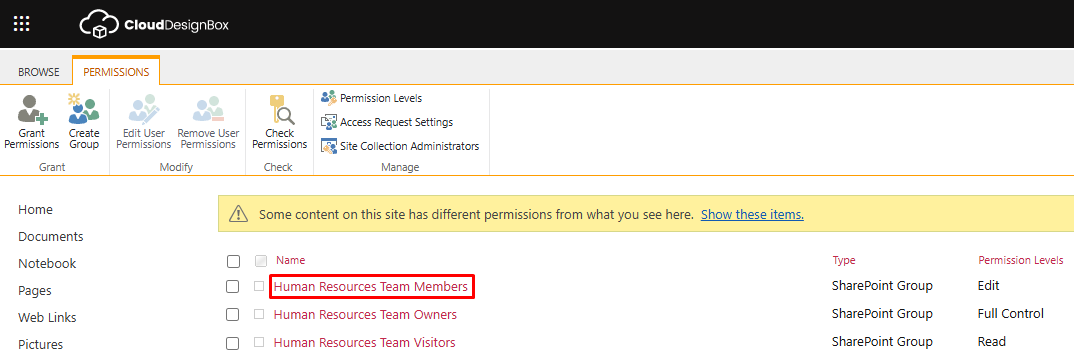
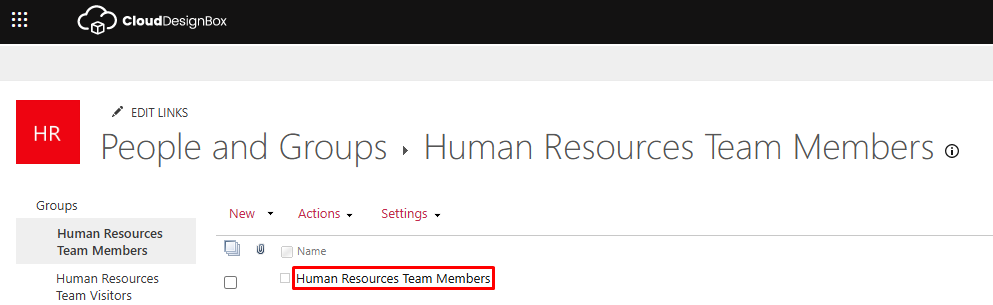
- Select the Team Members SharePoint group.
- Select the Team Members group on the following page.
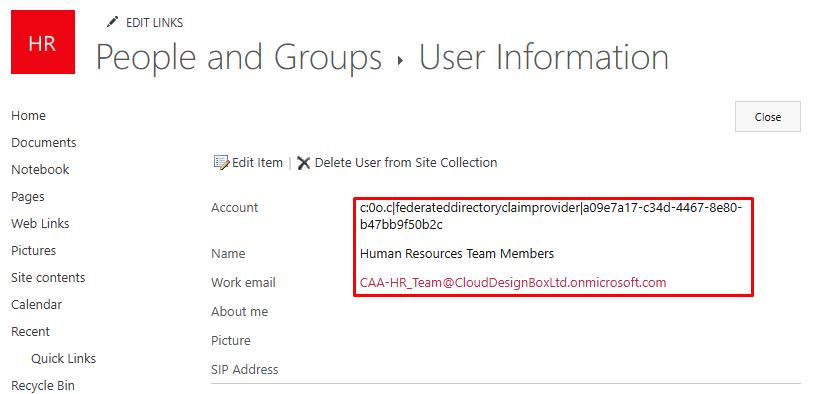
- The Object ID, Name and Email of the group will then be display, which can be searched in Identity, if required.
Step 2: Add member to Team
Once the correct group has been Identified, new users can be added as a member either via an Owner of the group or a Teams admin.
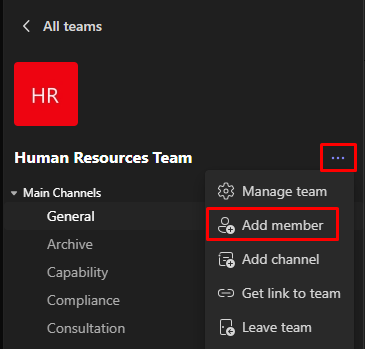
- Team Owner: Navigate to the Team, click on the three dots and select Add member.
Search for the user and select them from the list, then click Send request.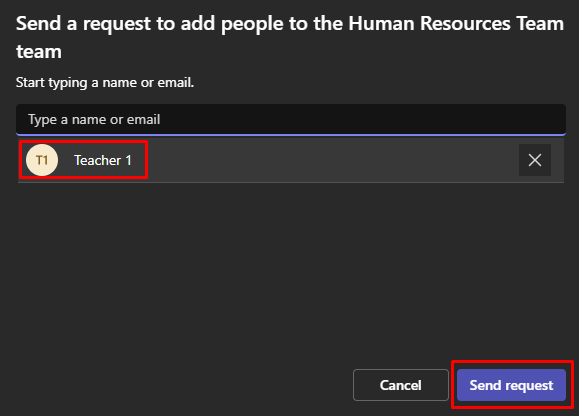
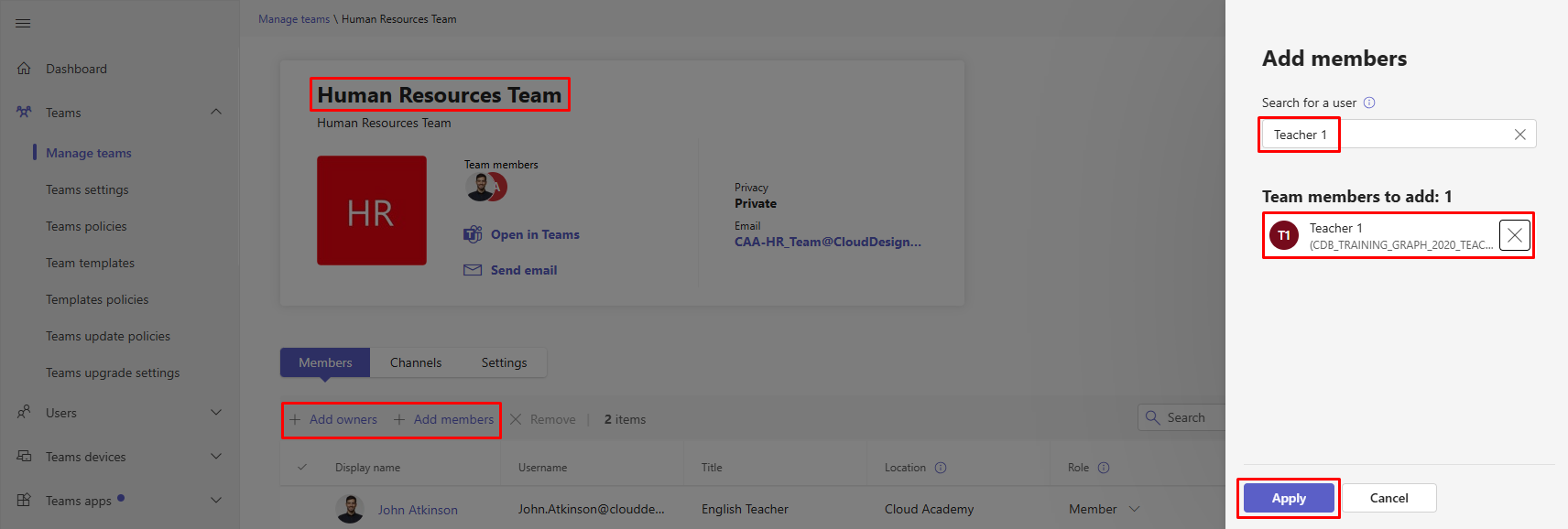
- Teams admin: Navigate to Teams admin centre, search for the Team in Manage Teams and select it from the list. Use the Add Members/Owners button, search for the user and select them from the list and click Apply.
Browser cache and forcing Mega Menu refresh
Once changes have been made to Mega Menu permissions by any of the above methods, this may take up to one hour to reflect in SharePoint.
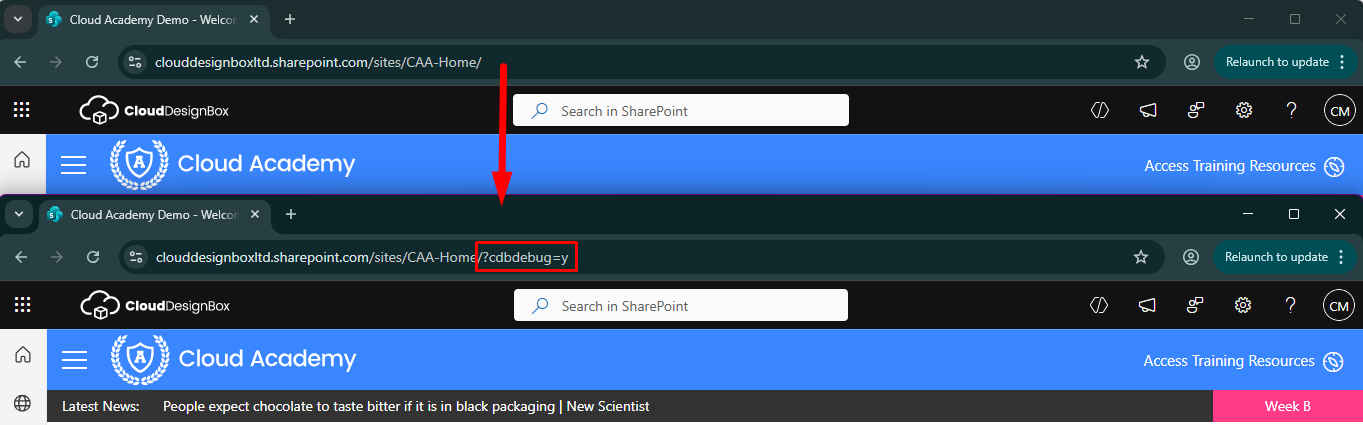
When accessing from the Home site, adding ?cdbdebug=y to the end of the Home URL should allow users to see the changes.
If you experience any issues after making changes based on this guide, please contact support for further assistance.
Was this article helpful?
That’s Great!
Thank you for your feedback
Sorry! We couldn't be helpful
Thank you for your feedback
Feedback sent
We appreciate your effort and will try to fix the article