To align with Microsoft best practices, we recommend assigning permissions to communication sites using groups rather than individual users. This approach simplifies management and ensures consistent access control.
To manage site permissions, you must have Full Control access to the site. As a SharePoint Administrator, the quickest way to obtain this access is by adding yourself as a Site Admin in the SharePoint Admin Center.
Granting Yourself Site Admin Access
In the SharePoint Admin Center, navigate to Active sites.
Search for and select the relevant site.
Open the Membership tab.
Add yourself as a Site Admin.
Save your changes.
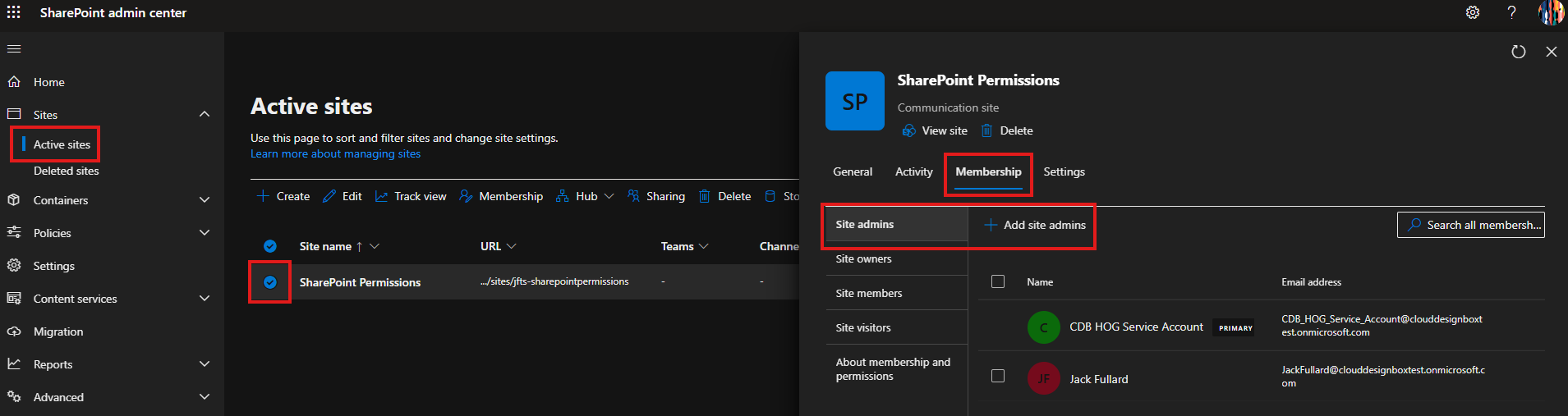
Accessing Advanced Site Permissions
Once you have been added as a Site Admin:
Go to the site.
Select the Settings (gear) icon in the top-right corner.
In the settings panel, select Site permissions.
Under the Permissions section, choose Advanced permissions settings.
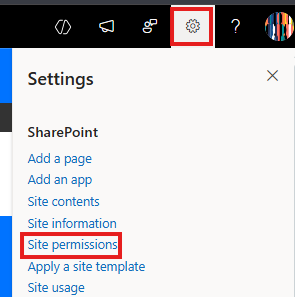
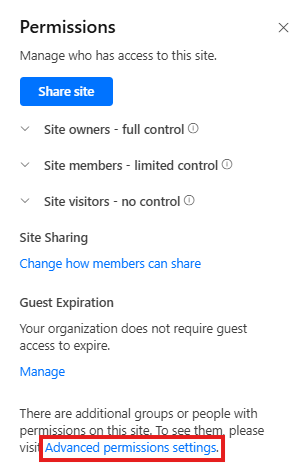
You will now have access to the site’s advanced permission settings, where you can manage groups and configure access as needed.
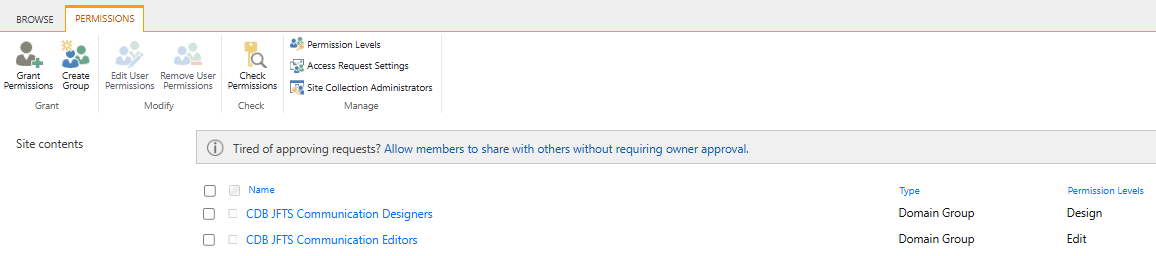
Permissions options
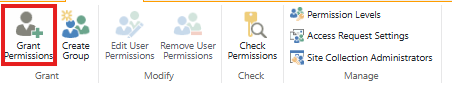
Grant Permissions
Use this option to give a group access to a site that it currently does not have.
Select Grant Permissions.
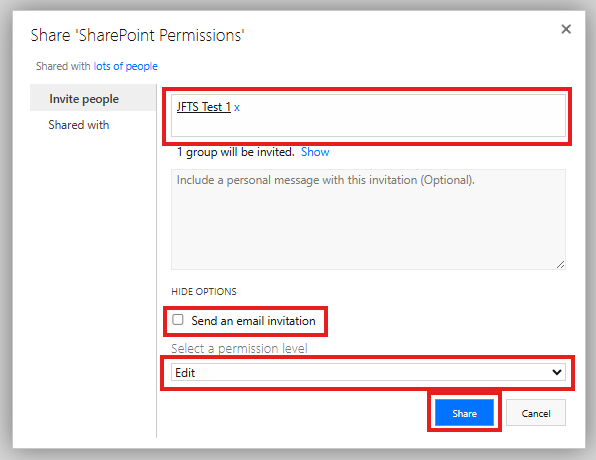
In the top field, enter the desired group.
Select Show Options.
Uncheck the Send an email invitation option.
Select the permission level the group requires (e.g., Read, Contribute, Edit)
Select Share to grant the permissions
Edit User Permissions
Use this to modify the permission level of a group that already has access.
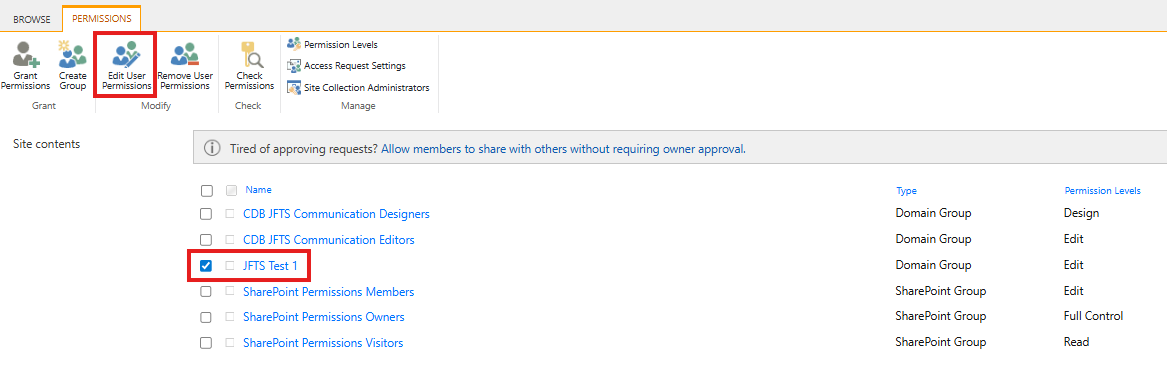
Select the check box next to the group.
Select Edit User Permissions.
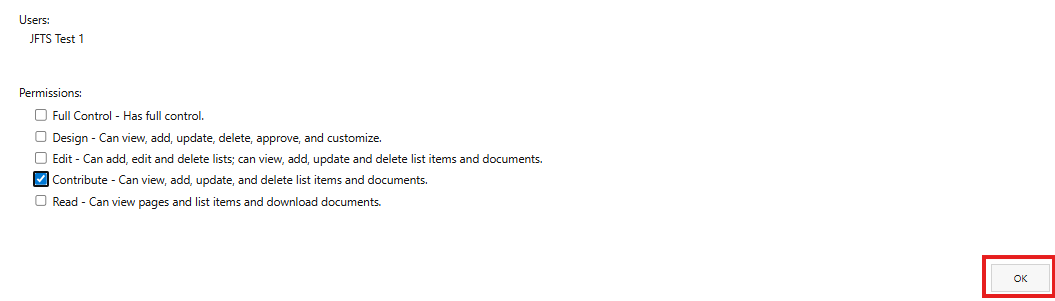
Select or amend the desired permission level.
Select OK to save.
Remove User Permissions
Use this to remove a group that should no longer have access to the site.
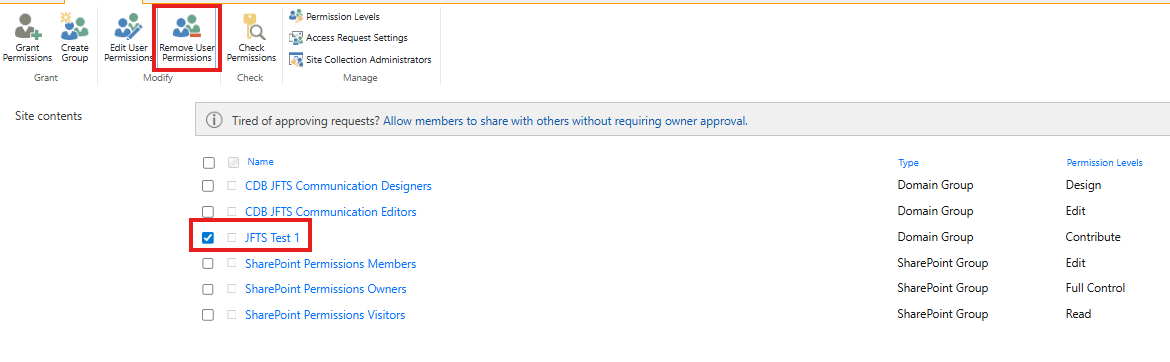
Select the check box next to the group you would like to remove.
Select Remove User Permissions.
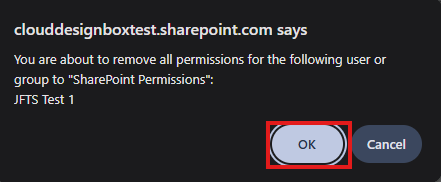
Select OK in the browser pop-up.
Check permissions
Use this to verify what permissions a user or group currently has and how they are assigned the permission.
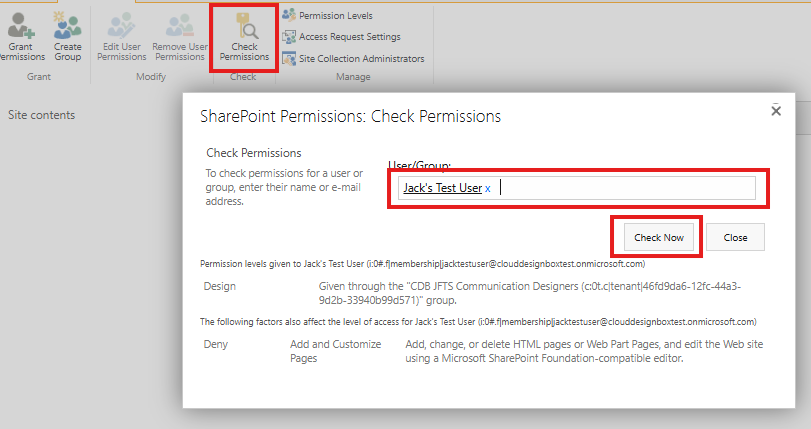
Select Check Permissions.
Enter the user or group into the field.
Select Check Now.
Was this article helpful?
That’s Great!
Thank you for your feedback
Sorry! We couldn't be helpful
Thank you for your feedback
Feedback sent
We appreciate your effort and will try to fix the article