Introduction
Schools and Colleges often have concerns about how private chats are utilised by students within Microsoft Teams. For some, this will lead to private chats being disabled for student accounts using a messaging policy with chats turned off. Unfortunately, disabling chat also blocks the opportunity for educators and students to communicate with each other privately for personalised learning.
Supervised chat is a setting that implements limitations on class chat scenarios. With Supervised chats, designated educators can initiate chats with students and block students from starting new chats unless an appropriate educator is present.
Policies and settings used for Supervised chats
Chat permission role - Messaging policies
Before enabling supervised chats, it is important that your Teams messaging polices have been configured with the appropriate chat permission role setting.

The following three chat permission roles can be assigned to a messaging policy:
Full Permissions - Best suited for educators who require complete access to students and staff. They can start chats with anyone in the organization and are responsible for supervising any chat they join. They cannot leave or be removed from chats they initiate or supervise, including those in federated tenants.
Limited Permissions - Designed for staff members who need supervised access to students but unrestricted access to other staff and educators. They can start chats with full- or limited-permission users, but not with restricted users. However, they may join chats with restricted users if someone with full permissions starts the conversation and is present to supervise.
Restricted Permissions - Intended for students who must be supervised. They can only start chats with users who have full permissions. They may join any chat initiated by a full-permission user who invites them. In federated environments, only a full-permission user from the restricted user’s own tenant can add them to chats.
Role-based chat permissions - Teams settings
Once the policies have been set up as required, Supervised chat can be turned on in the Teams settings. To turn on supervised chat, navigate to Teams settings in the Teams admin center. Under 'Safety and communications' enable role-based chat permissions.
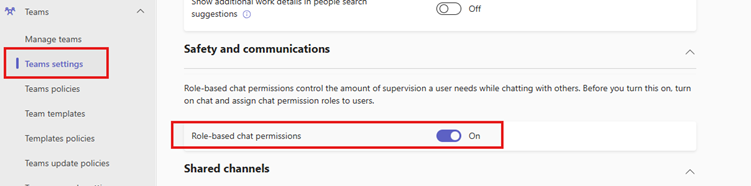
Once enabled, new chats will be restricted based on the chat permission role in the messaging policy assigned to the user. Existing chats will not be enforced by the change and will continue to be unrestricted.
Was this article helpful?
That’s Great!
Thank you for your feedback
Sorry! We couldn't be helpful
Thank you for your feedback
Feedback sent
We appreciate your effort and will try to fix the article