PIM can be used to provide temporary access to admin areas without giving our support account permanent admin access. While we do not directly support the setup of PIM access, this article should provide helpful guidance. Please ensure that appropriate due diligence is carried out when implementing your security measures.
(Prerequisites)
Please note to use Privileged Identity Management, you must have a Microsoft Entra ID P2 or Microsoft Entra ID Governance license. For more information on licensing, see Microsoft Entra ID Governance licensing fundamentals.
Configure Microsoft Entra role settings in Privileged Identity Management
To get to the settings for Microsoft Entra roles:
- Sign into https://entra.microsoft.com/#home (You will need to be at least a Privileged Role Administrator)
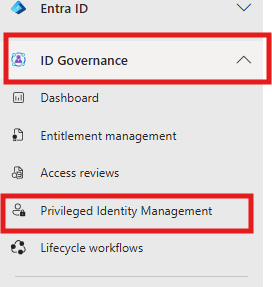
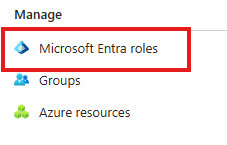
- On the left hand Toolbar click on “ID Governance” and then “Privileged Identity Management”. From there click “Microsoft Entra roles” and then “Roles”.
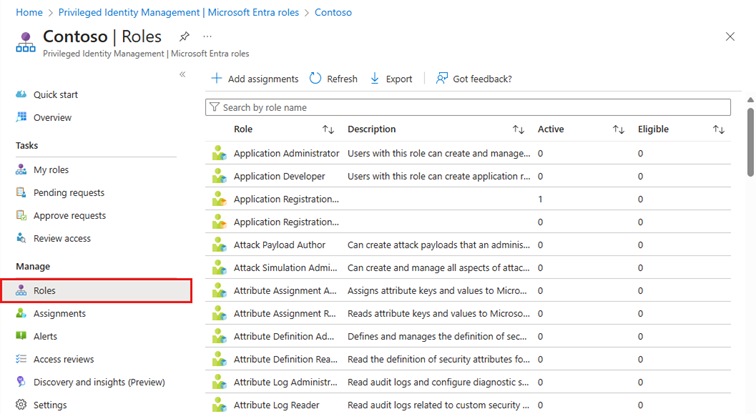
On this page you’ll see a list of Microsoft Entra roles available to you, including built-in and custom roles.
For our purposes Teams and SharePoint administrator is generally enough to perform most troubleshooting steps when necessary.


Alternatively Global admin could be used to ensure we also have access to Entra ID which is also useful when troubleshooting

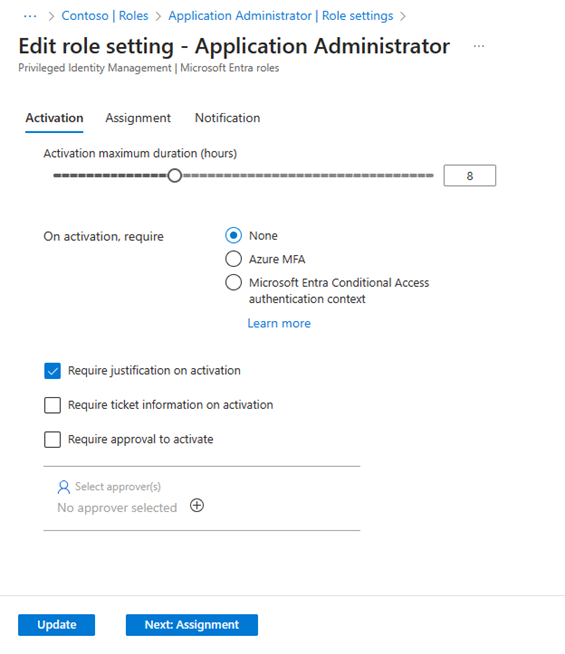
After clicking on a chosen role, on the role settings page you will see the current PIM settings assigned to the selected role. Select “Edit” to update the settings and click “Update” once happy with the configuration.
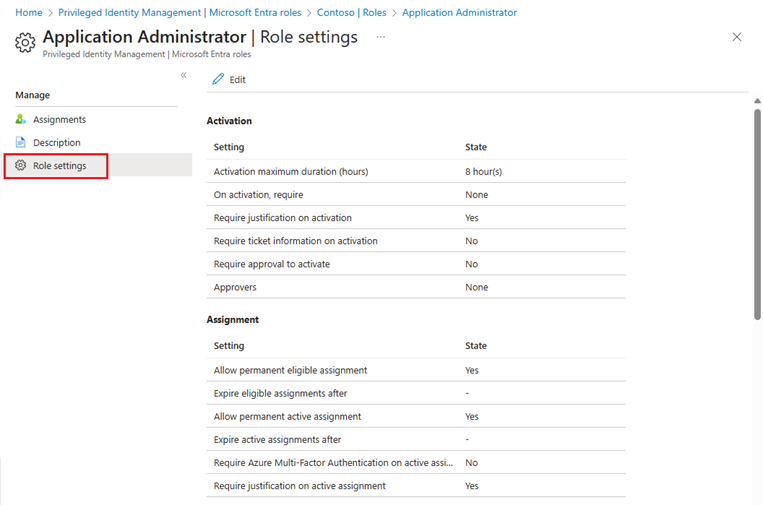
On the role settings page you will see the current PIM settings assigned to the selected role. Select “Edit” to update the settings and click “Update” once happy with the configuration.
Some useful settings you can use allow you to:
- Require justification to be sent when requesting a role
- Require approval to activate
- Set MFA
- Set specific allotted time the user can keep the role for
Assign a role
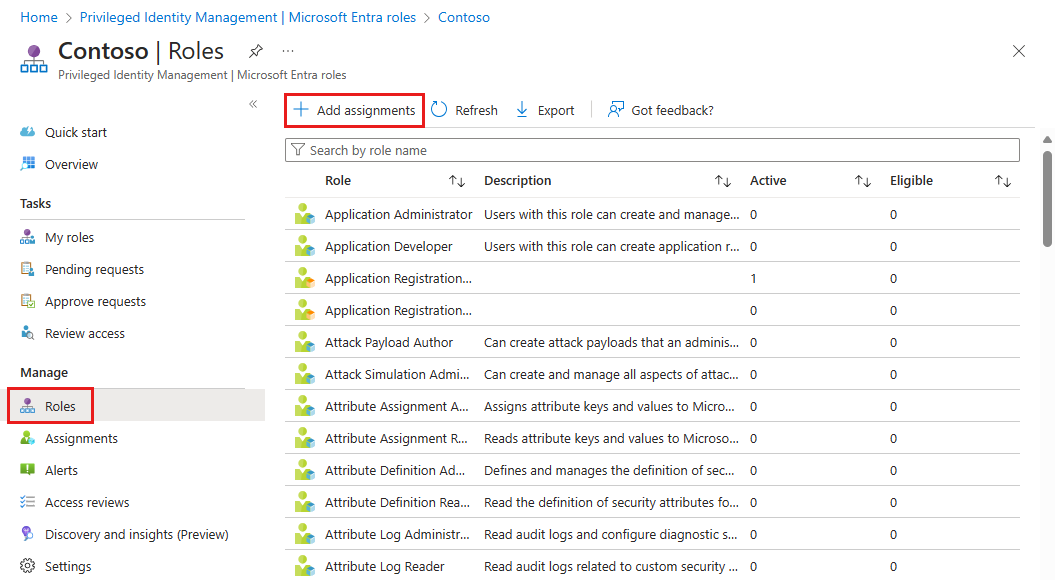
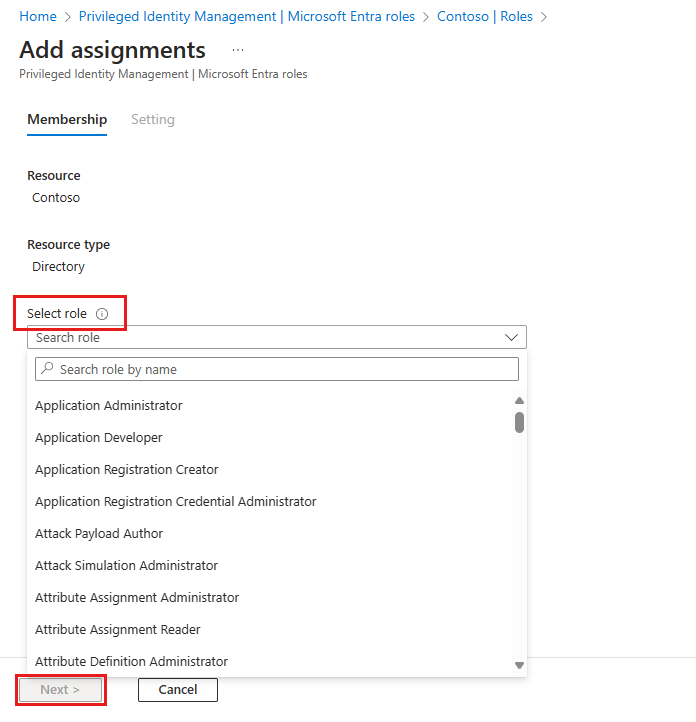
From the Microsoft Entra roles (Manage Roles) page click "+ Add assignments" then select a role you want to assign, and choose the cdb support account to assign to the role, then select Next.
(You can select users, groups, or agent identities.)
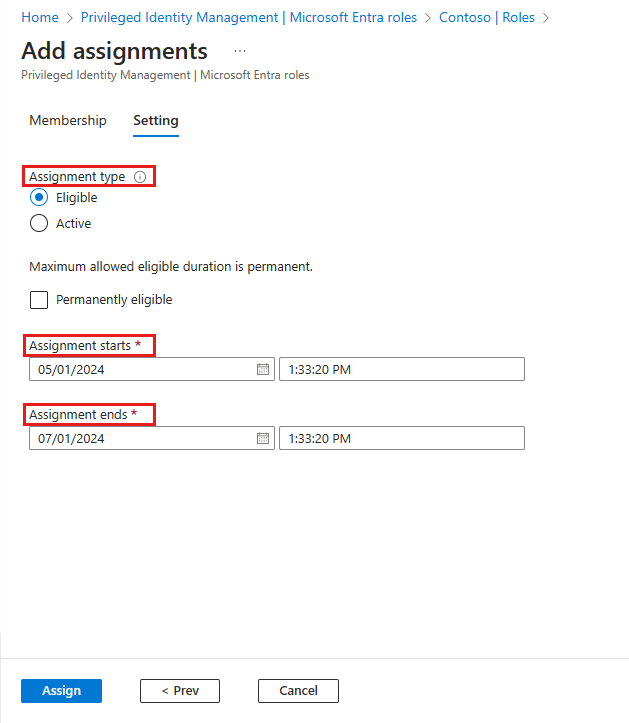
In the Assignment type list on the Membership settings pane, select Eligible or Active. For our purposes eligible assignments may be preferred as it will mean only providing elevated access whilst actively providing support.
- Eligible assignments require the member of the role to perform an action to use the role. Actions might include performing a multifactor authentication (MFA) check, providing a business justification, or requesting approval from designated approvers.
- Active assignments don't require the member to perform any action to use the role. Members assigned as active always have the privileges assigned to the role.
To specify a specific assignment duration, add a start and end date and time boxes. When finished, select Assign to create the new role assignment.
Was this article helpful?
That’s Great!
Thank you for your feedback
Sorry! We couldn't be helpful
Thank you for your feedback
Feedback sent
We appreciate your effort and will try to fix the article