Introduction
Electronic discovery, or eDiscovery, can be used to identify, review, and manage content within 365; supporting investigations. You can perform eDiscovery searches across both mailboxes and sites and export the results — Cases in eDiscovery allow you to identify, hold, and export content.
With an Office 365 E5 or Microsoft 365 E5 subscription (or related E5 add-on subscriptions), you can also manage cases and analyse content using premium eDiscovery features.
Requirements
A retention policy must be in place
If no retention policy is enabled then this process will not work, and the messages from the teams will not be recoverable. Note that finding a deleted message through eDiscovery will not allow that message to be restored into the team.
- Admin Manager
The first step is ensuring that we have an admin manager role for eDiscovery.
Admin Manager
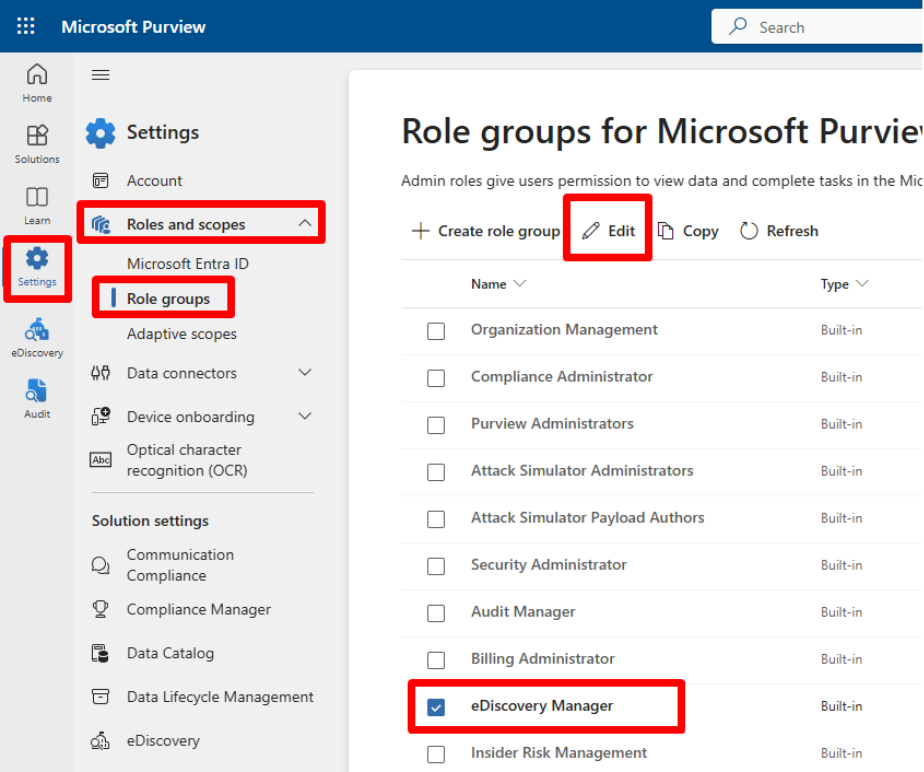
Select Settings > Roles and Scopes > Role Groups.
Select the eDiscovery Manager checkbox then click edit.
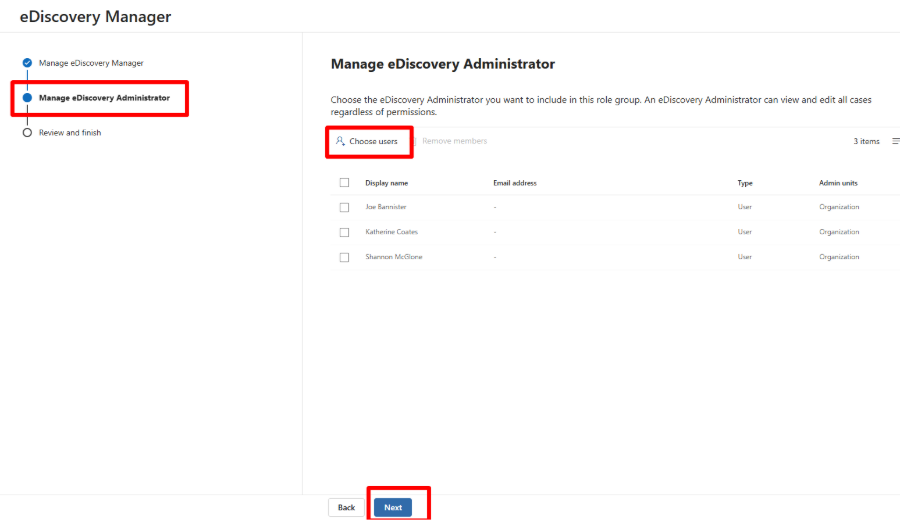
On the following page skip the Manager section and go straight to Admin, then select choose users. This will allow you to search the user required who will be doing the export/search.
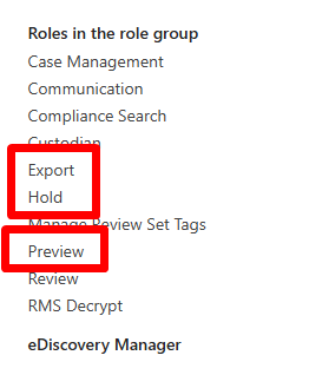
When permissions are set, go back to Purview home.
e-Discovery
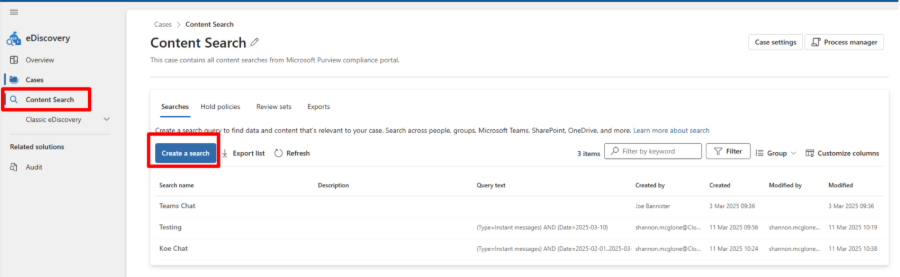
On the left-hand side panel, you should see eDiscovery. If it's not on the panel, it will be in the "View all Solutions" tile on the home page.
On the following page, select Content Search. Input a title (description is optional), then select Create a search.
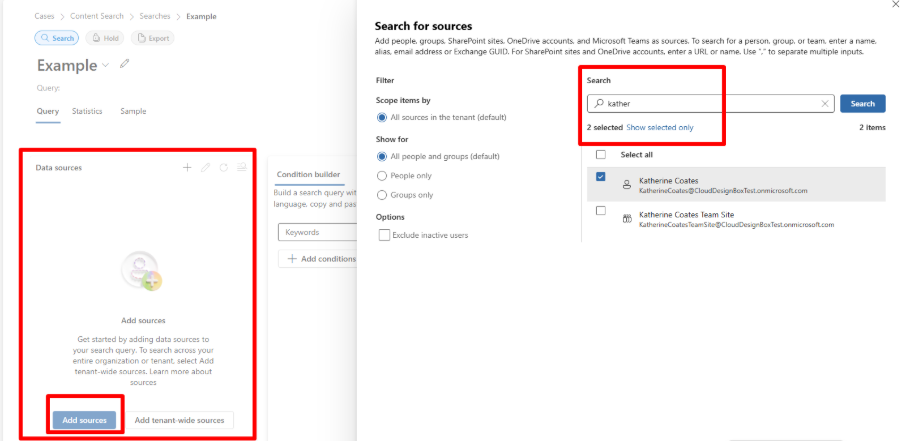
Next, you will need to add data sources. Select Add Sources and then search the user you wish to recover the messages for, press Save and Close.
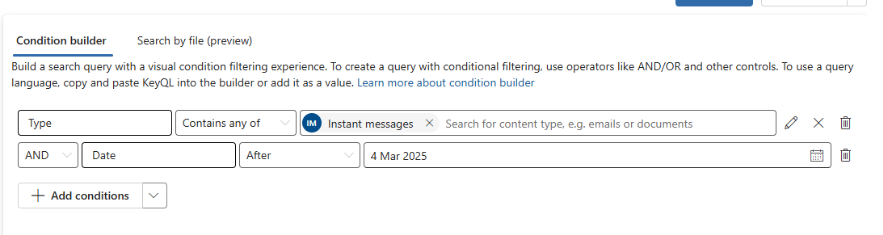
Select Add Condition. For messages. You will need to add the Type condition, then add Instant Messages to the type condition.
I would also recommend date if you knew the period in which they were sent, for the date, you will have the option of before and after a date as well as a time between dates.
Results
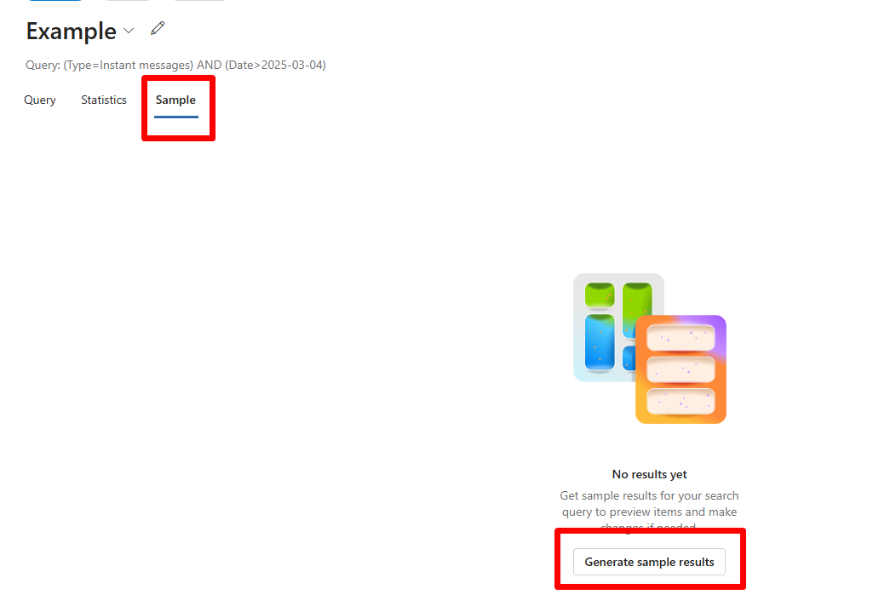
Select the Sample tab, then Generate Sample. A pop-up will appear with a drop-down menu. Unless you have a premium license, only one option is available. Select Run Query.
This will take a while to run!
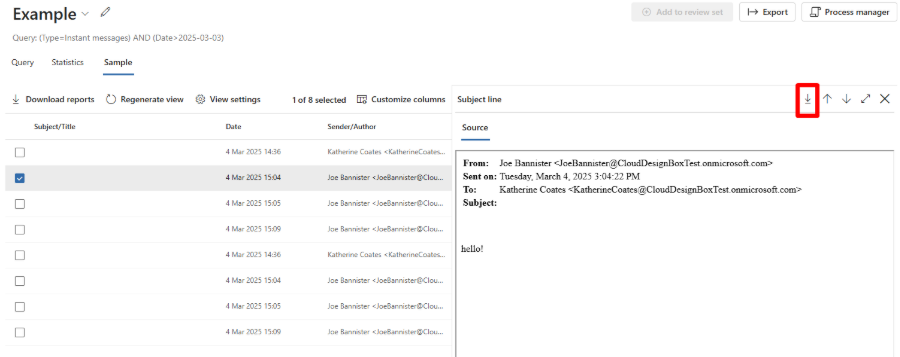
- Select them.
- Download the messages individually — they will be in an MSG format, so you will need a converter .
- Run Bulk export for Outlook.
Exporting will provide a pop-up form, provide a name for the export.
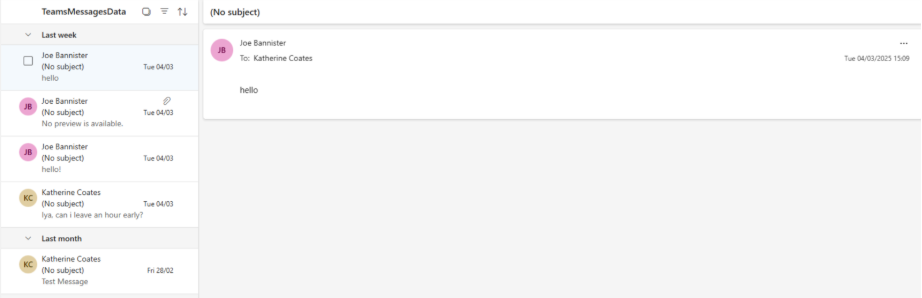
The xml options to view as chats are for premium, however, we can still view via outlook.
The PST package is required for this method. You can bulk download all messages as .msg. However, these will still require individual conversion.
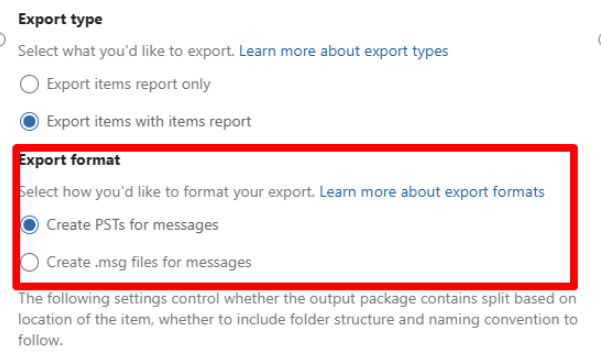

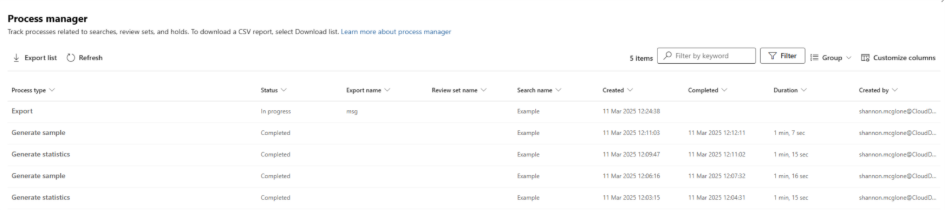
Select Export and then Download. You will need only the PST zip file. Once downloaded:
- Open Outlook.
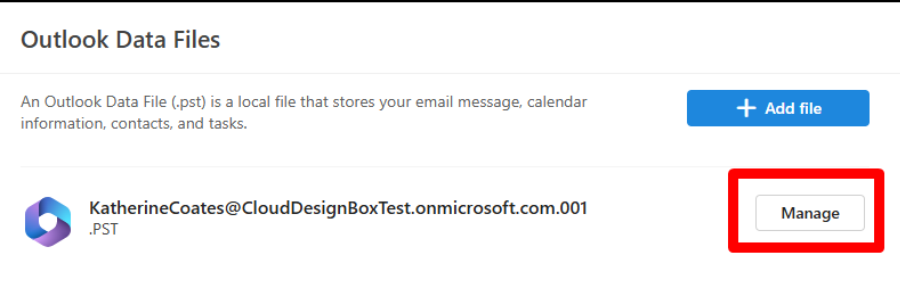
- Select the cog -> General -> Outlook Data Files
- Add File. A pop-up will appear.
- Select continue.
- Navigate to the PST folder and open the file (these will need to be unzipped if not already).
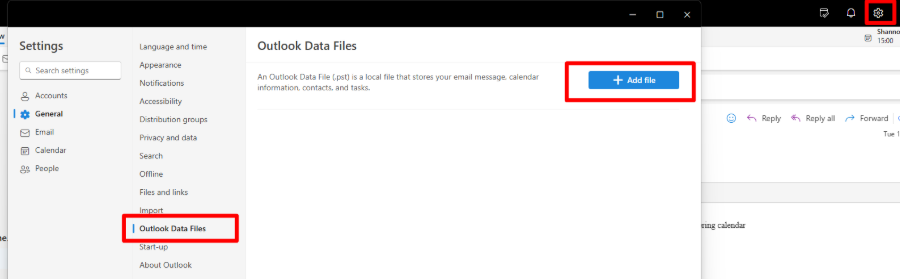
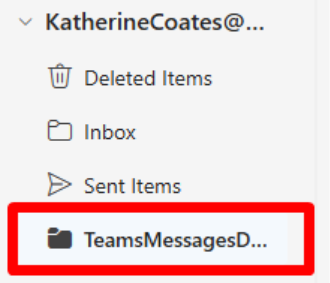
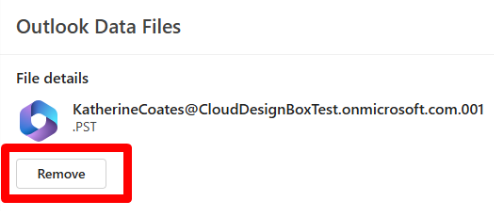
Once the investigation is complete, go back to the Outlook data files setting and select manage, then select remove.
There are options to export from outlook to excel, but these options are either extremely fiddly or require outlook classic.
Was this article helpful?
That’s Great!
Thank you for your feedback
Sorry! We couldn't be helpful
Thank you for your feedback
Feedback sent
We appreciate your effort and will try to fix the article